














 Ingredient Database


 Allergen Filter
 Allergen Filter


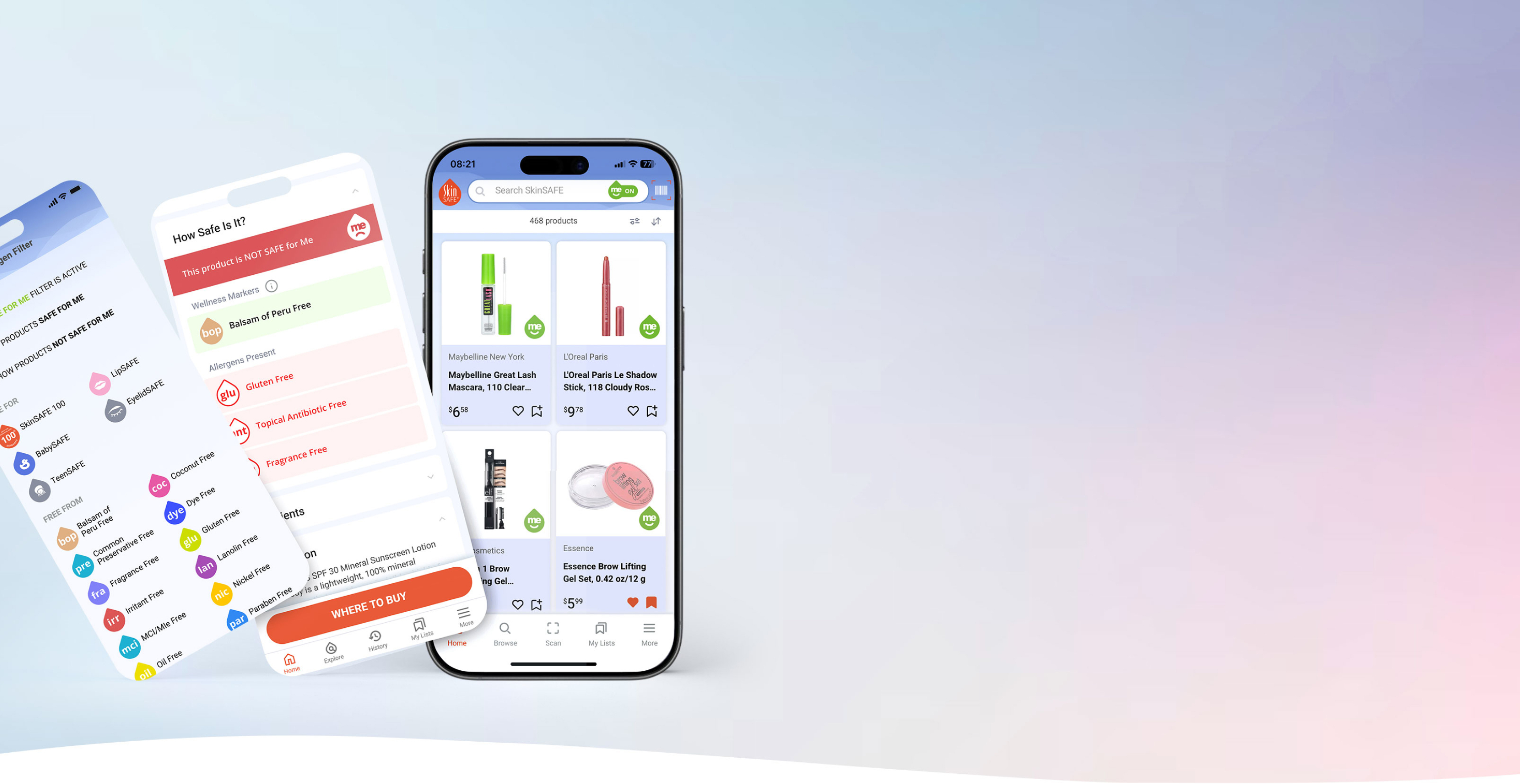
Try Premium for FREE Today


Enjoy accelerated product submissions and fast answers to your questions.
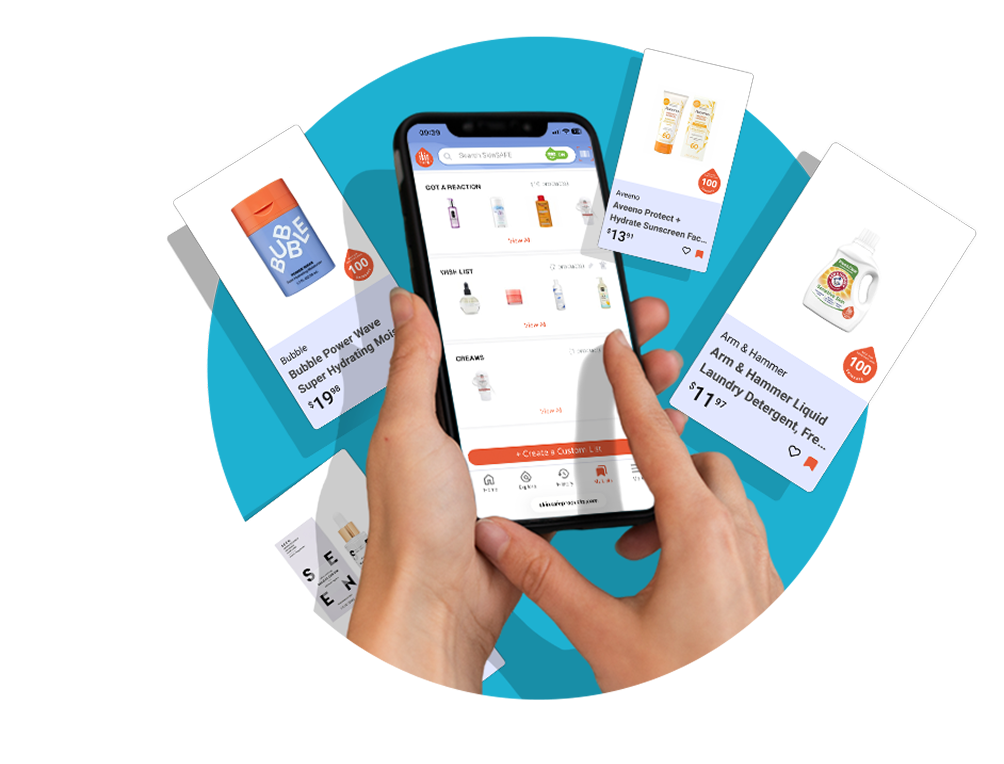
Create up to 5 lists - wishlists, routines, gifts, you name it.
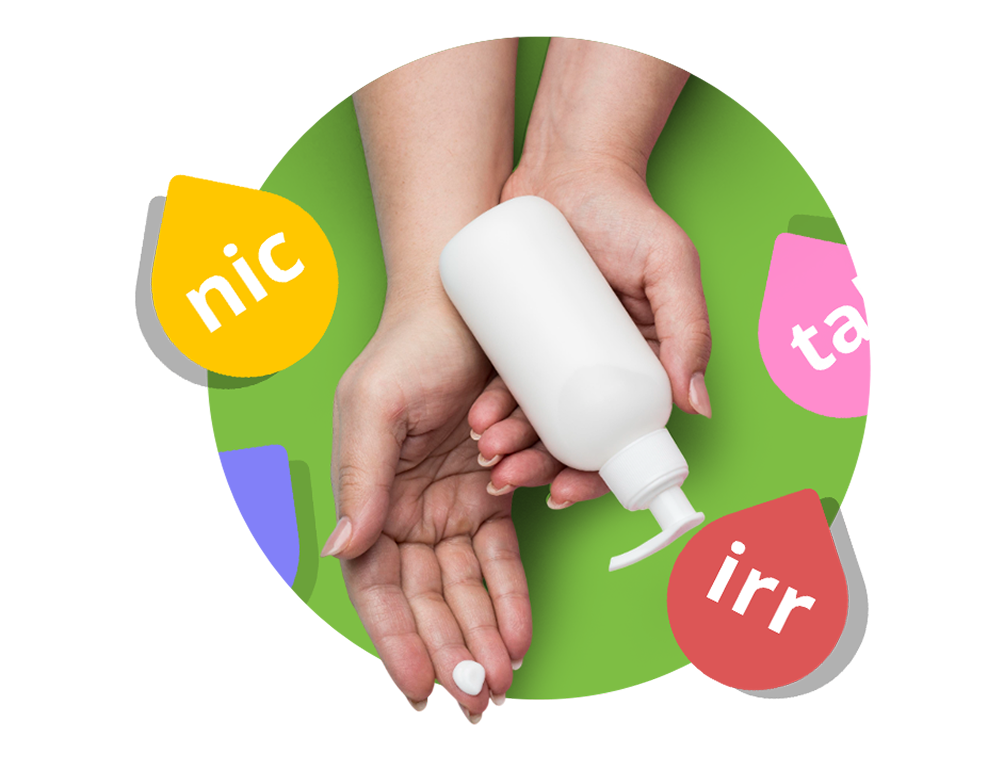
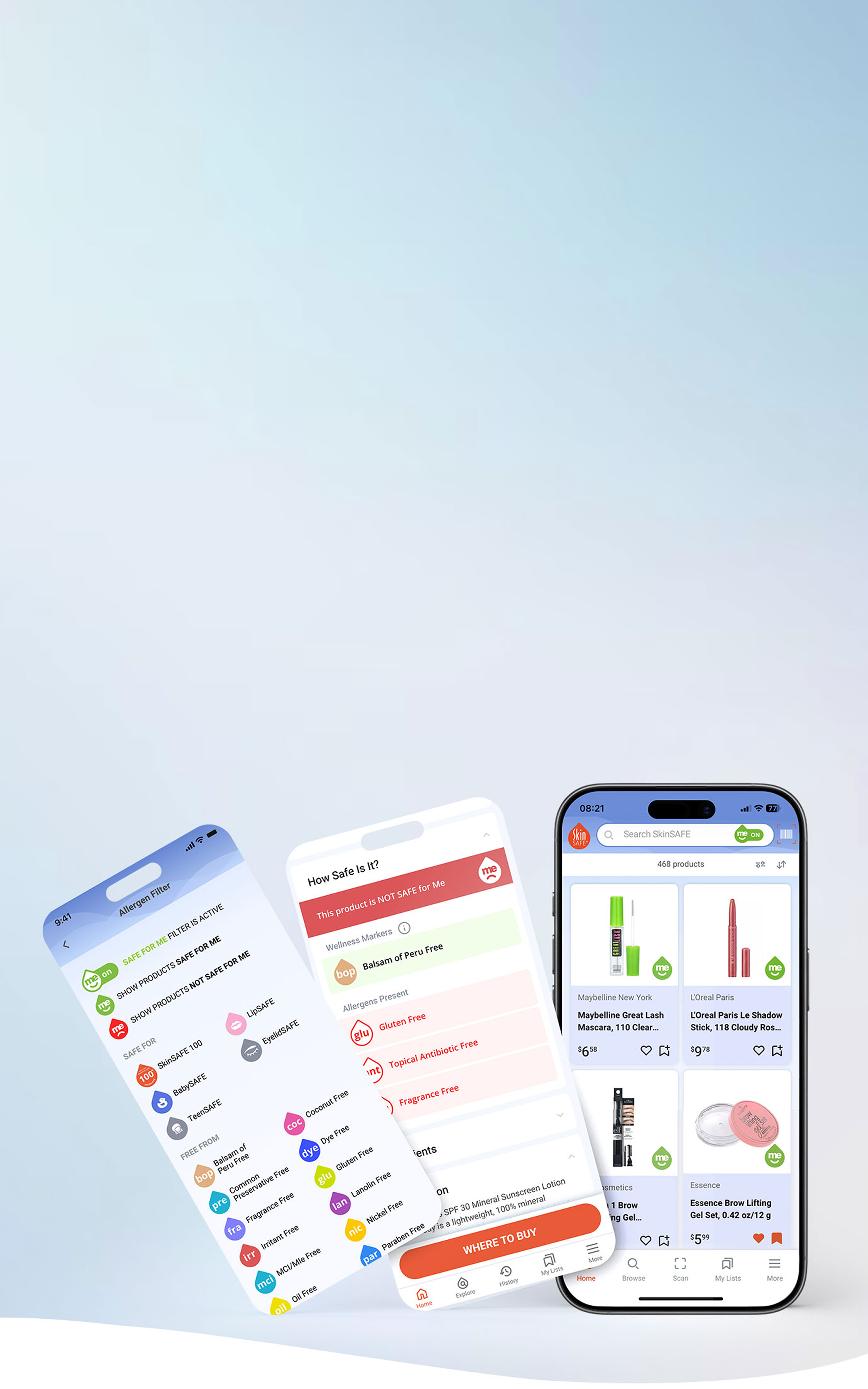
View the specific ingredients flagged as unsafe for your skin, powered by clinical data.
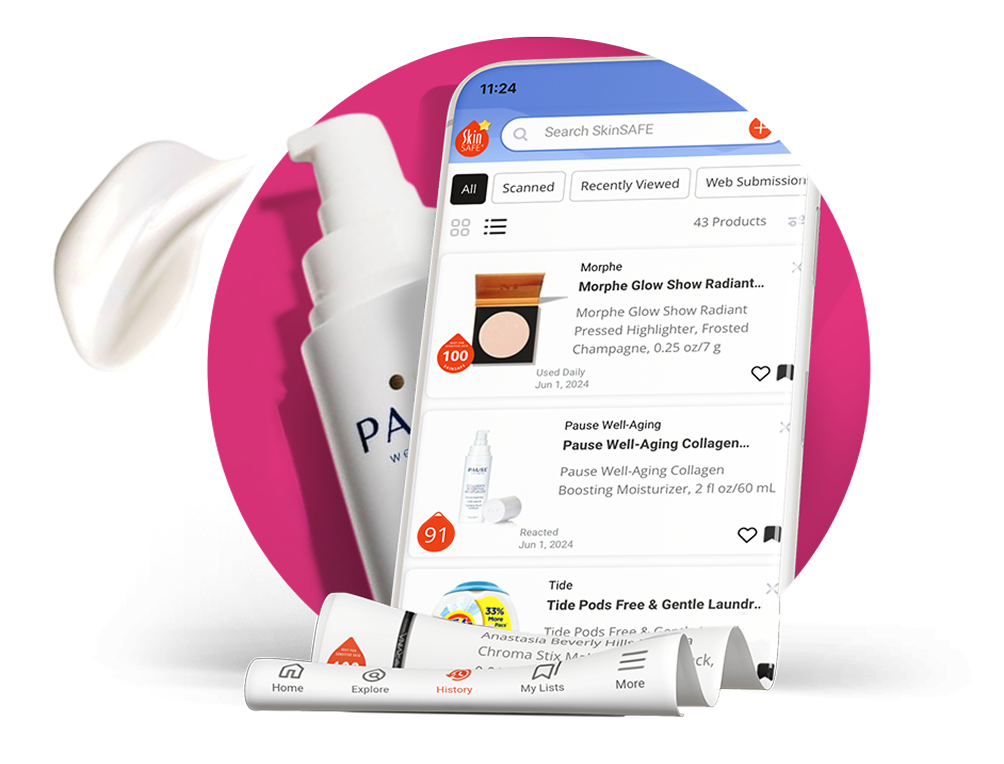
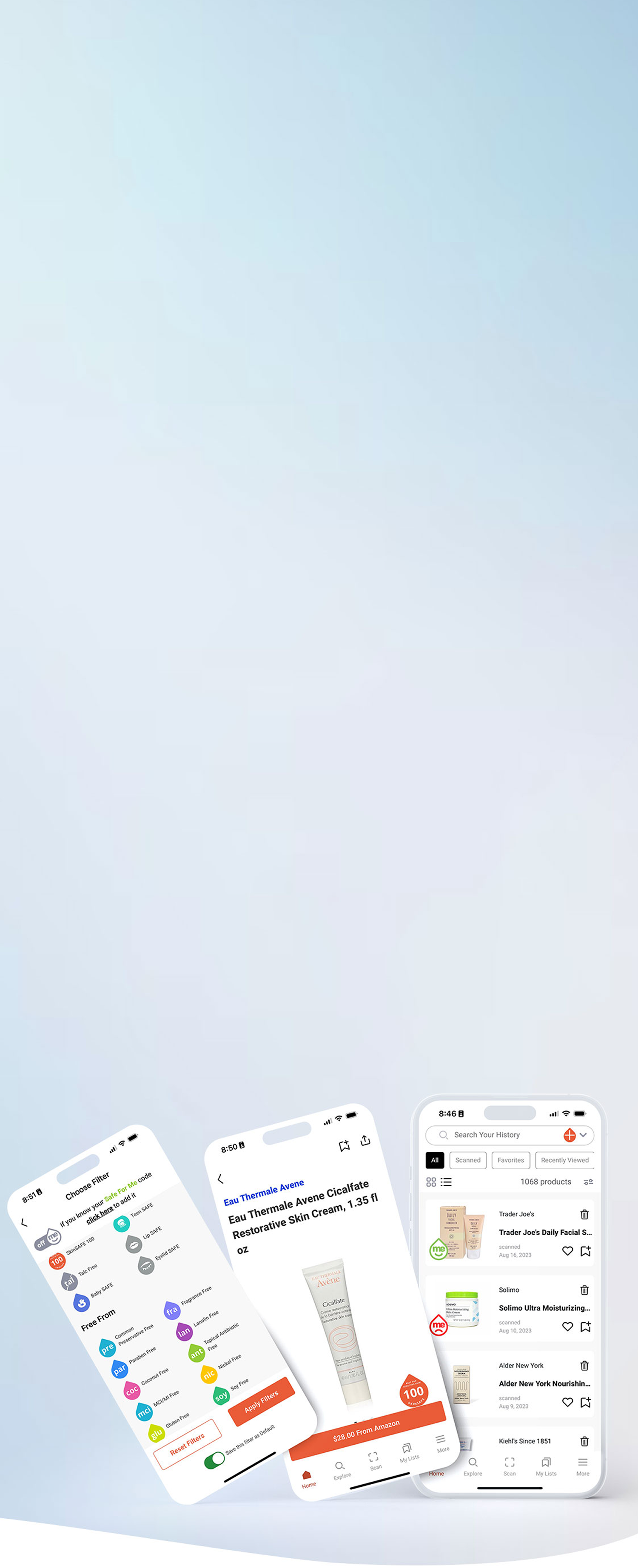
Access your full list of recently viewed and scanned products — no limits.
Don't just take our word for it—hear directly from our SkinSAFE community about the value of Premium.
If you're subscribed through Apple or Google, you can make this change in your device's subscription settings. For SkinSAFE subscriptions, log in to your account and go to My Account > Manage Subscriptions to update your plan.
Cancellation steps depend on how you subscribed:
Apple (App Store) – Visit Settings > Apple ID > Subscriptions and select SkinSAFE to cancel.
Google (Google Play) – Go to the Play Store > Account > Subscriptions and cancel SkinSAFE.
SkinSAFE Website – Log in at skinsafeproducts.com, go to My Account > Manage Subscriptions, and follow the cancellation steps.
Log in to your account. Go to Manage Subscriptions and turn off the auto-renewal toggle. The subscription will remain active until the end of the billing cycle.
Refunds depend on where you subscribed:
Apple / Google – Apple and Google handle their own billing and refunds. If you subscribed through the App Store or Google Play, you'll need to request a refund directly from them.
SkinSAFE Website – Refund requests for monthly subscriptions are considered if submitted within 24 hours of payment. Please reach out to our support team to request a refund.
Apple – Visit reportaproblem.apple.com, log in with your Apple ID, and select the SkinSAFE purchase to request a refund.
Google – Go to play.google.com, log in, select My Subscriptions, and follow the steps to request a refund.
If a payment doesn't go through, you'll receive a notification, and we'll attempt the charge again. If it continues to fail, your Premium access may be paused until the billing issue is resolved.
You can update your payment info by logging in and going to Manage Subscriptions > Payment Details > Update > Submit.